The short answer
Most Spark devices are set up and run in the Tuya Smart app, and many product pages also name Smart Life. Wi-Fi devices, such as Spark smart locks, join your home Wi-Fi directly. Zigbee devices pair through the Hub-Z Zigbee gateway or the gateway built into a control panel such as the 6-inch Panel. Then you sort devices into rooms, build scenes and invite your family.
On this page
What does the Tuya Smart app do in a Spark home?
The Tuya Smart app is the control room of a Spark home. You add each device there, sort devices into rooms, control them from your phone, build scenes, receive alerts and invite the rest of the family.
Spark's catalogue says every device joins the same app, so a lock, a curtain and an air conditioner sit side by side. The wall switches stay real switches: pressing one never waits for the app.
How each Spark family connects, and what the app does with it:
| Spark family | Connects through | In the app |
|---|---|---|
| Control panels | 2.4 GHz Wi-Fi, with a built-in Tuya Zigbee gateway | The same devices and scenes, on the wall |
| Hub-Z gateway | Ethernet cable or Wi-Fi to the router | Pairs Zigbee devices; local scenes run offline |
| Zigbee switches and modules | The Hub-Z or a panel's gateway | Lights in the app and in scenes |
| Wi-Fi touch switches, such as the WT-50-B | Home Wi-Fi, no hub | Lighting circuits, 1 to 4 gang |
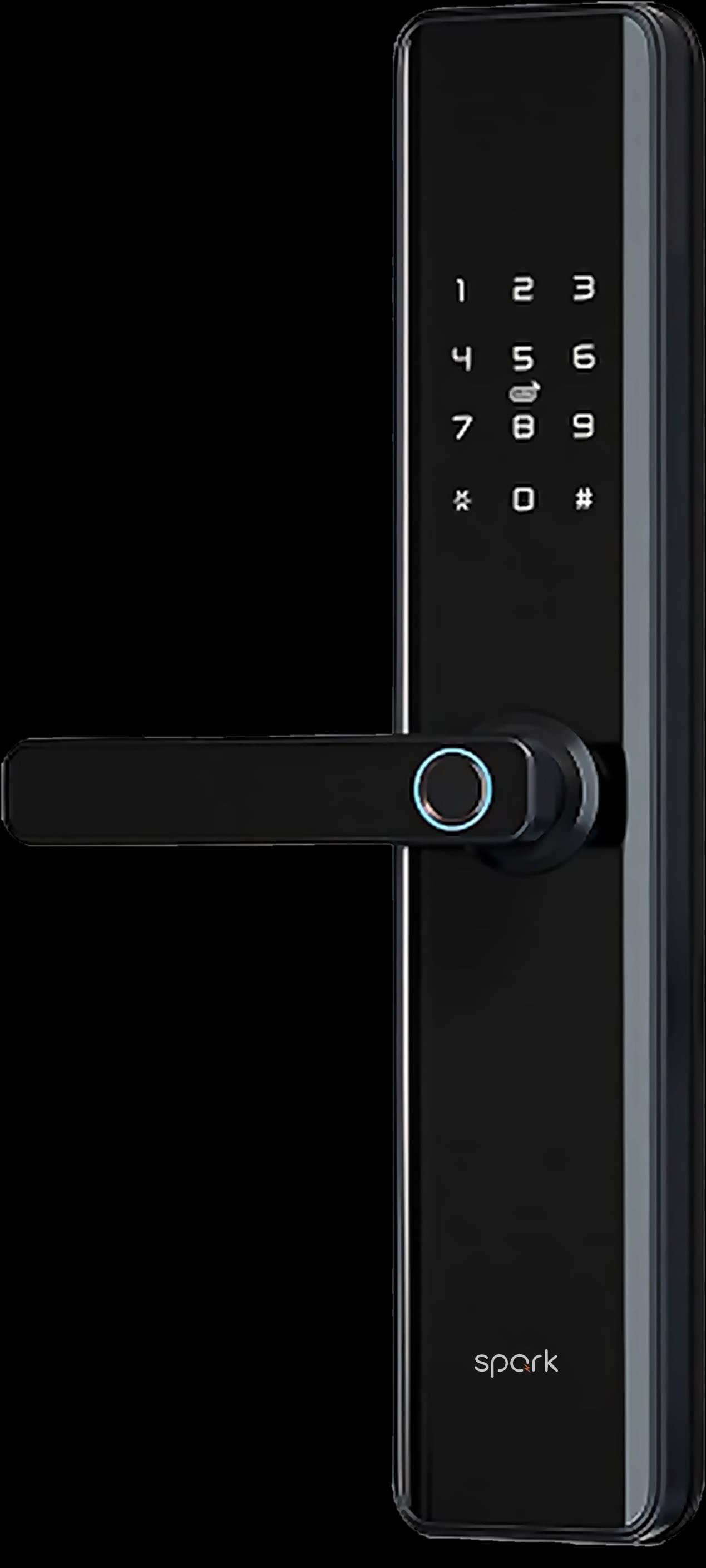
| Smart locks | Tuya Wi-Fi; the SL-100 also has a TTLock version | Unlocking; unlock records or video calls, by model |
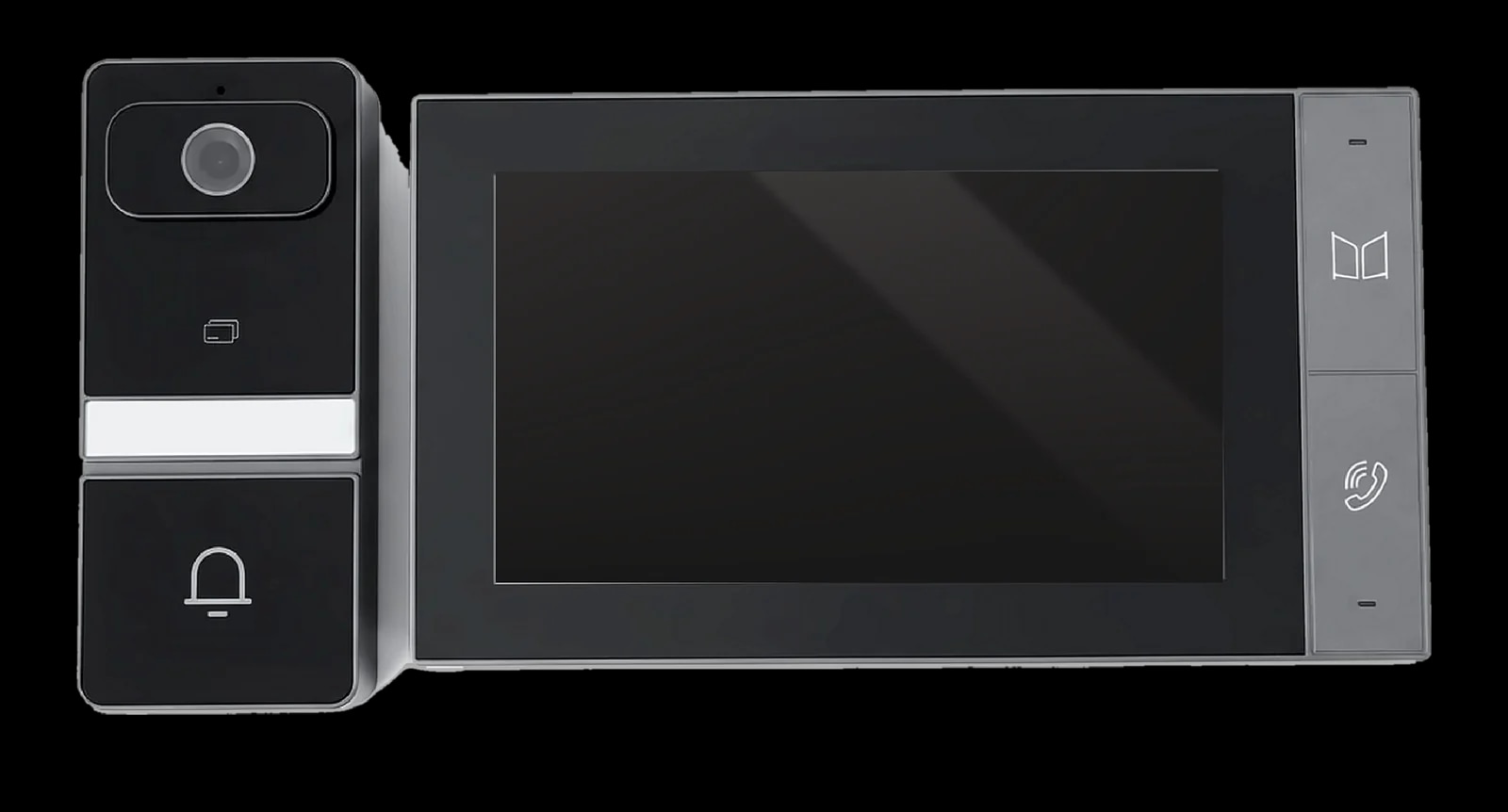
| Intercom kits, such as the S-301 | Wi-Fi, to the Tuya and Smart Life apps | Door calls on your phone, live camera, unlocking |
| Split AC: the IR-10 smart remote | Wi-Fi, or Zigbee through a gateway | Power, temperature, mode, fan speed and timers |
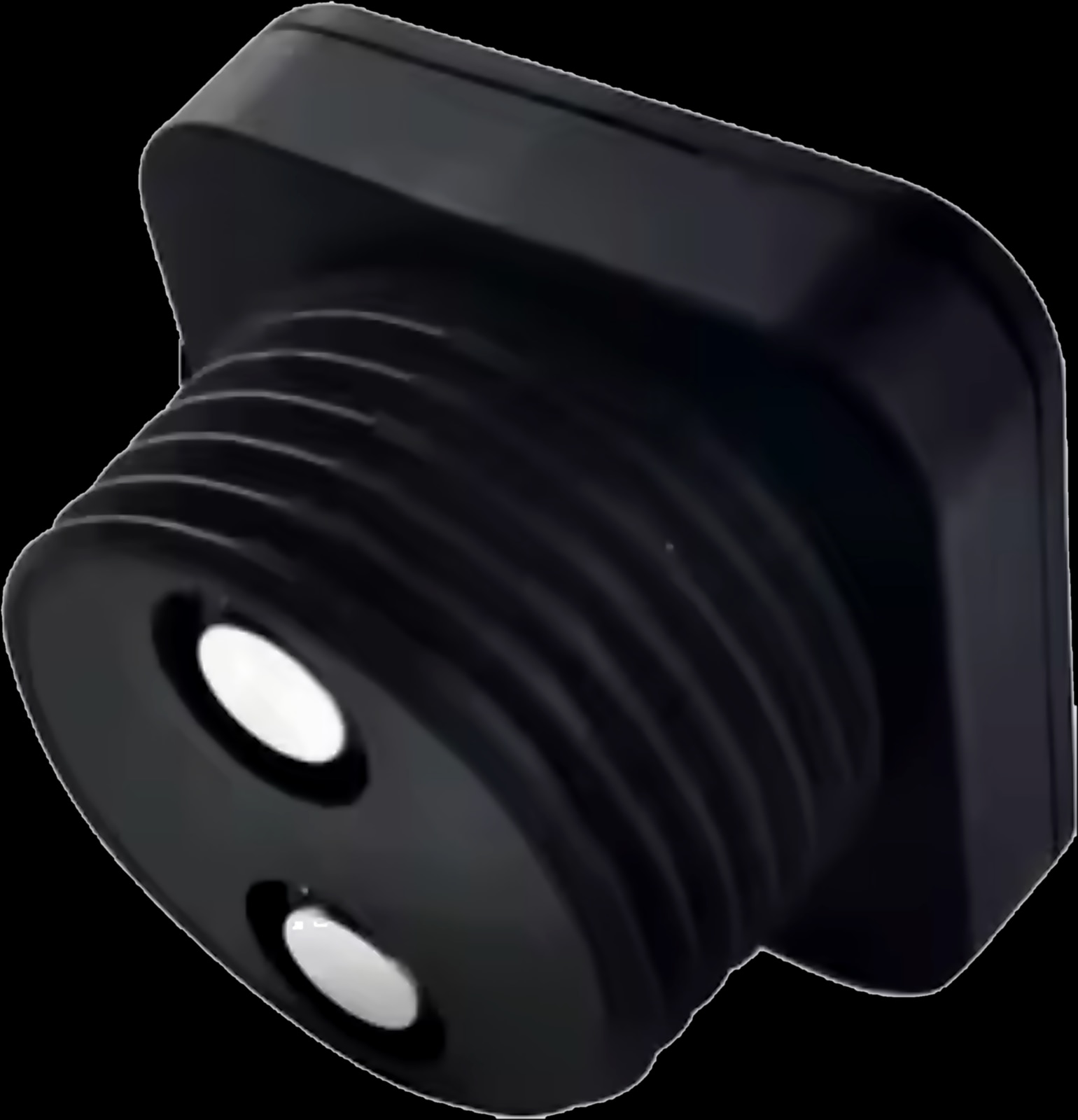
| Tank sensors, such as the WL-30 | Wi-Fi; larger monitors use LoRa first | Level percentage, depth, high and low alarms |
Spark devices you run from the Tuya Smart app
Tuya Smart, Smart Life or TTLock: which app do you need?
Start with Tuya Smart: it is the app named on every Spark control panel, on the smart locks, on the thermostat and on the Hub-Z.
Smart Life is a second app on the same Tuya platform, also named by the Hub-Z, the IR-10, the curtain motors, the tank sensors and the intercom kits. Whichever you pick, keep the whole household on one app.
TTLock concerns one model. The SL-100 security-door lock comes in a Tuya Wi-Fi version for Tuya Smart or a TTLock version for the TTLock app, and both show unlock records. To keep the lock beside your lights and curtains, choose the Tuya Wi-Fi version.
How to use the Tuya Smart app: set up your home and rooms first
Before you add a single device, create the home in the app and add its rooms. Each device then goes into a room, and everyone who shares the home sees the same layout.
Follow the way your family talks about the house: majlis, guest wing, garden, roof. Two properties, say a villa in Amman and a flat in Aqaba, can be two homes in one account.
- Name devices by what they control, such as "Majlis spotlights" or "Kitchen blind". Every shared phone shows these names, and they are the words you say to a voice assistant.
- Add rooms for the roof and the entrance, where the tank sensors, the intercom and the main-door lock live.
How to add a Wi-Fi device to the Tuya Smart app
A Wi-Fi device connects to your router directly, with no gateway. Add it from your phone, close to the device, with the phone on the Wi-Fi network the device will use.
In Spark's range, that includes the smart locks, Wi-Fi switches and modules, intercom kits and the WL-30. Check three points first:
- Use the 2.4 GHz Wi-Fi. Spark's panels and Wi-Fi switch modules state 2.4 GHz, and the tank monitor's wall display does not support 5 GHz.
- Turn on Bluetooth on the phone. The WL-30 and the tank monitor's display both ask for it during pairing.
- Tap + in the app and follow the prompts, then name the device and place it in its room.
If a device will not join, the cause is usually the Wi-Fi itself, such as a weak signal on the roof. A Spark partner can test the coverage before installation.
How to add a Zigbee device to Tuya: the Hub-Z or a panel gateway
Zigbee devices do not join your Wi-Fi themselves. They pair with a Tuya Zigbee gateway, which brings them into the app: the Hub-Z, or the gateway built into every Spark control panel.
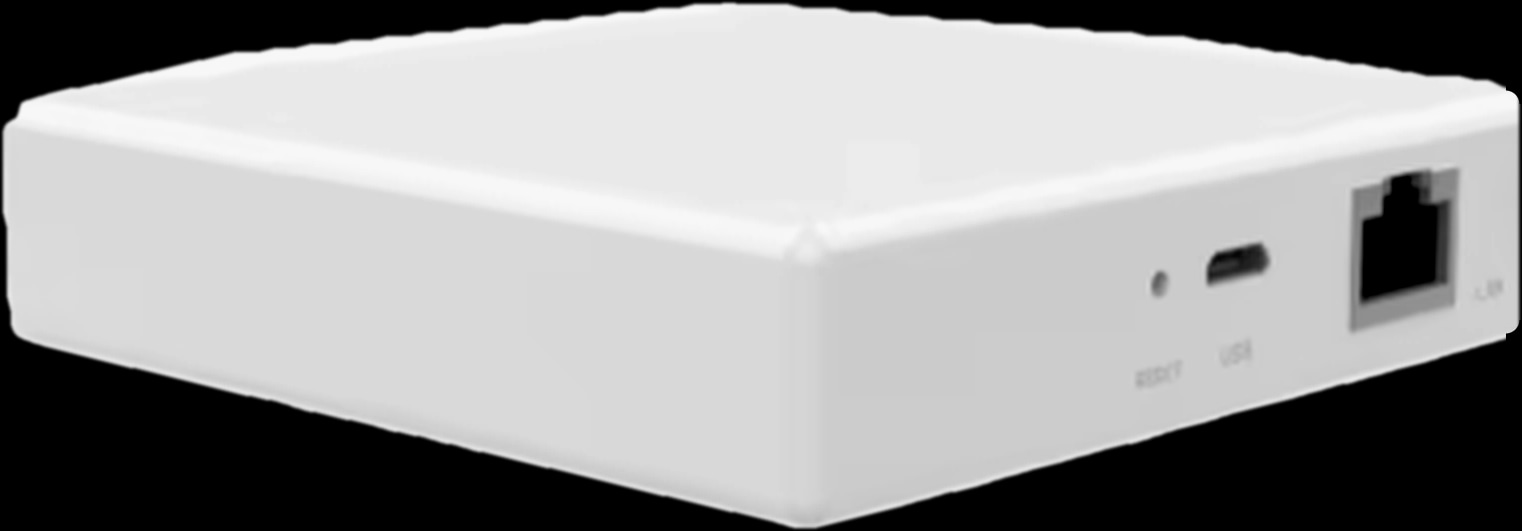
The Hub-Z runs its own Zigbee network, off the router's Wi-Fi. The Ethernet version is cabled to the router and supports up to 128 sub-devices; the wireless version joins your Wi-Fi and sits anywhere within its range, with power.
Setting up the Ethernet Hub-Z:
- 1
Power it
Connect the USB Type-C cable to a power adapter.
- 2
Cable it to the router
Connect the LAN port to the router with the 0.5 m network cable in the kit.
- 3
Check the lights
Two green lights mean the gateway is ready. If needed, hold Reset until they are steady green.
- 4
Add it in Tuya Smart
Tap + in the app and follow the prompts.
- 5
Pair your devices
Open the gateway in the app and pair each compatible Zigbee device, then put it in its room.
With a control panel, the gateway is already inside: pair Zigbee devices with the panel, then control them from its screen and the app. To choose between the two networks, see our guide to Zigbee vs Wi-Fi smart switches.
Zigbee gateways: the Hub-Z and panels with one built in
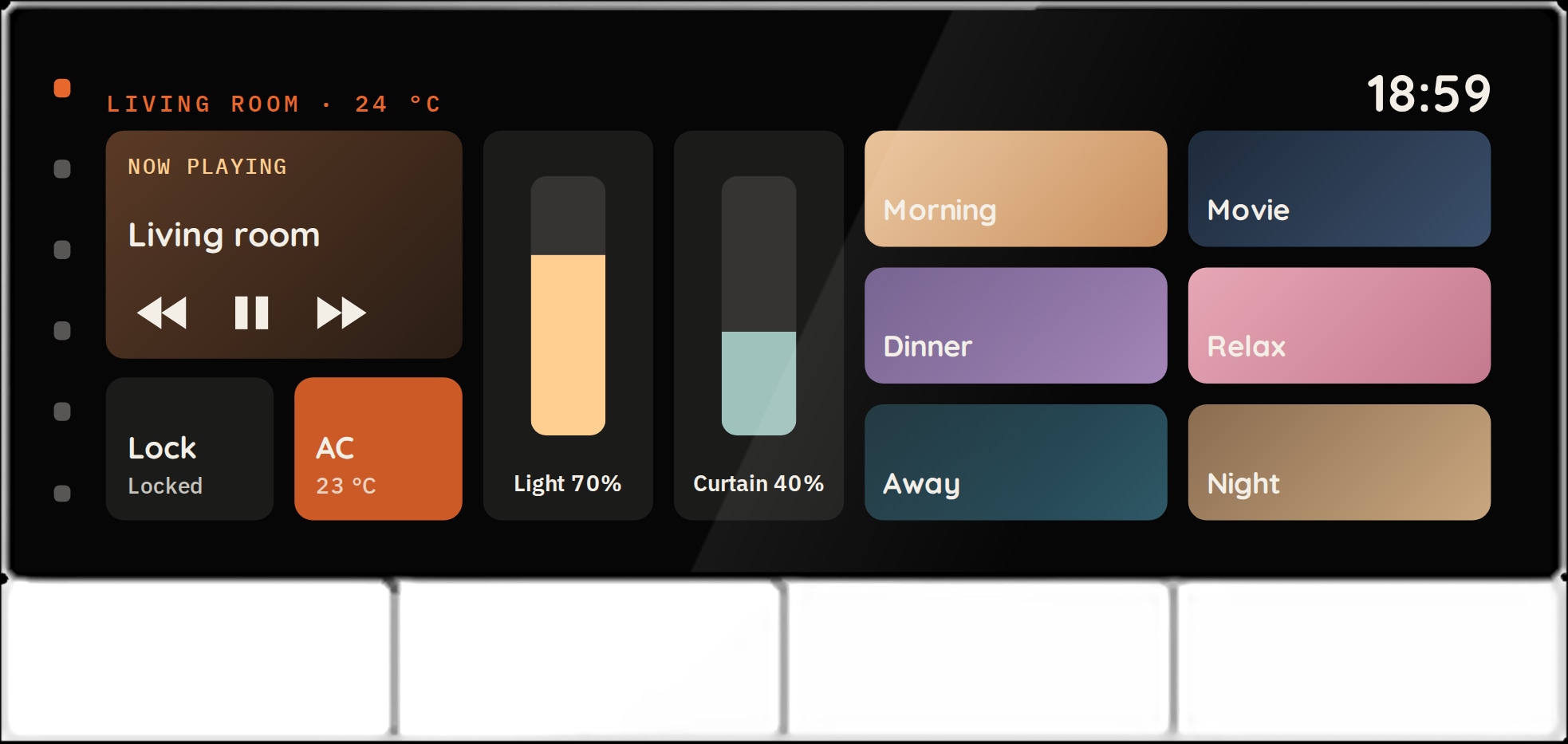
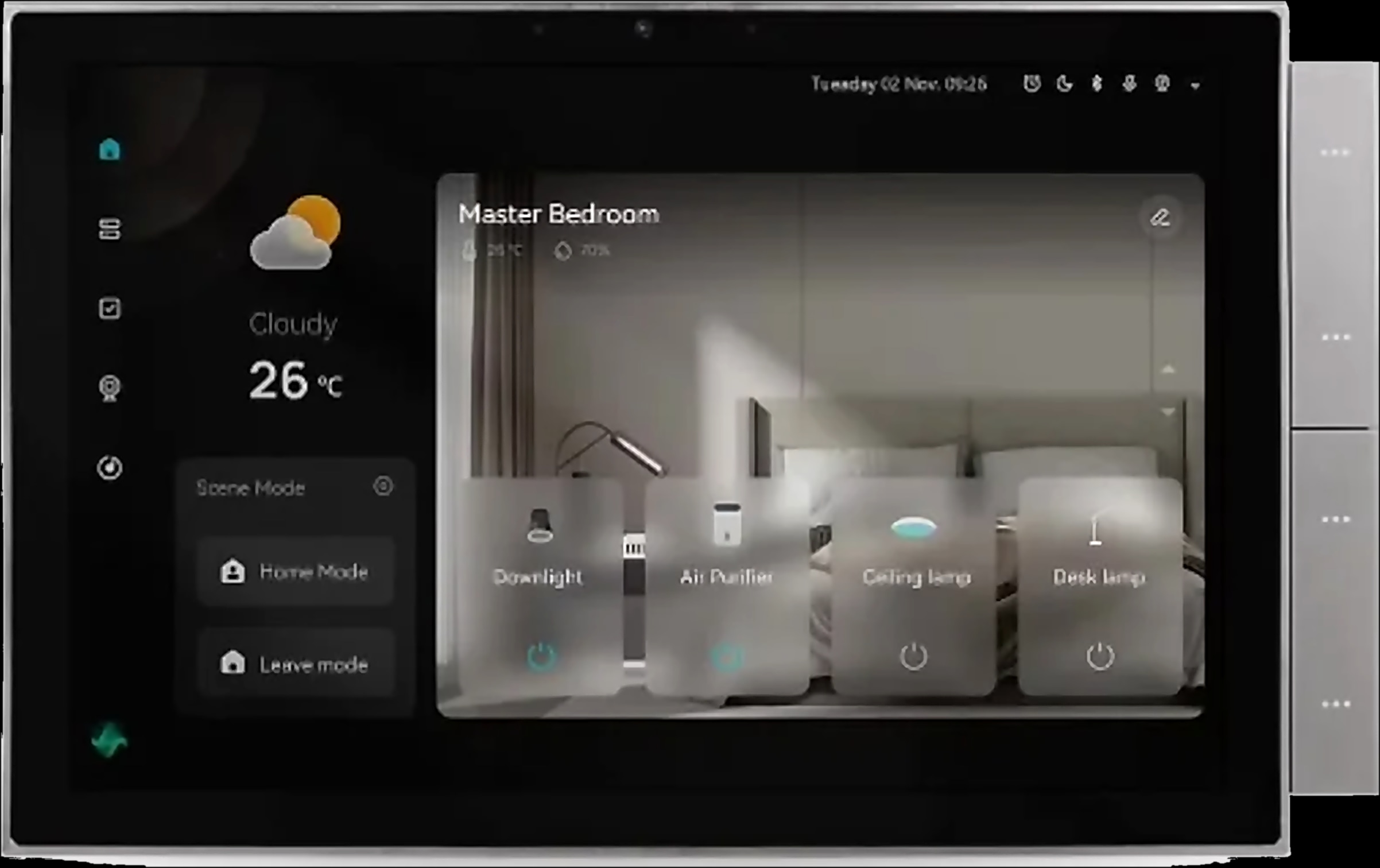
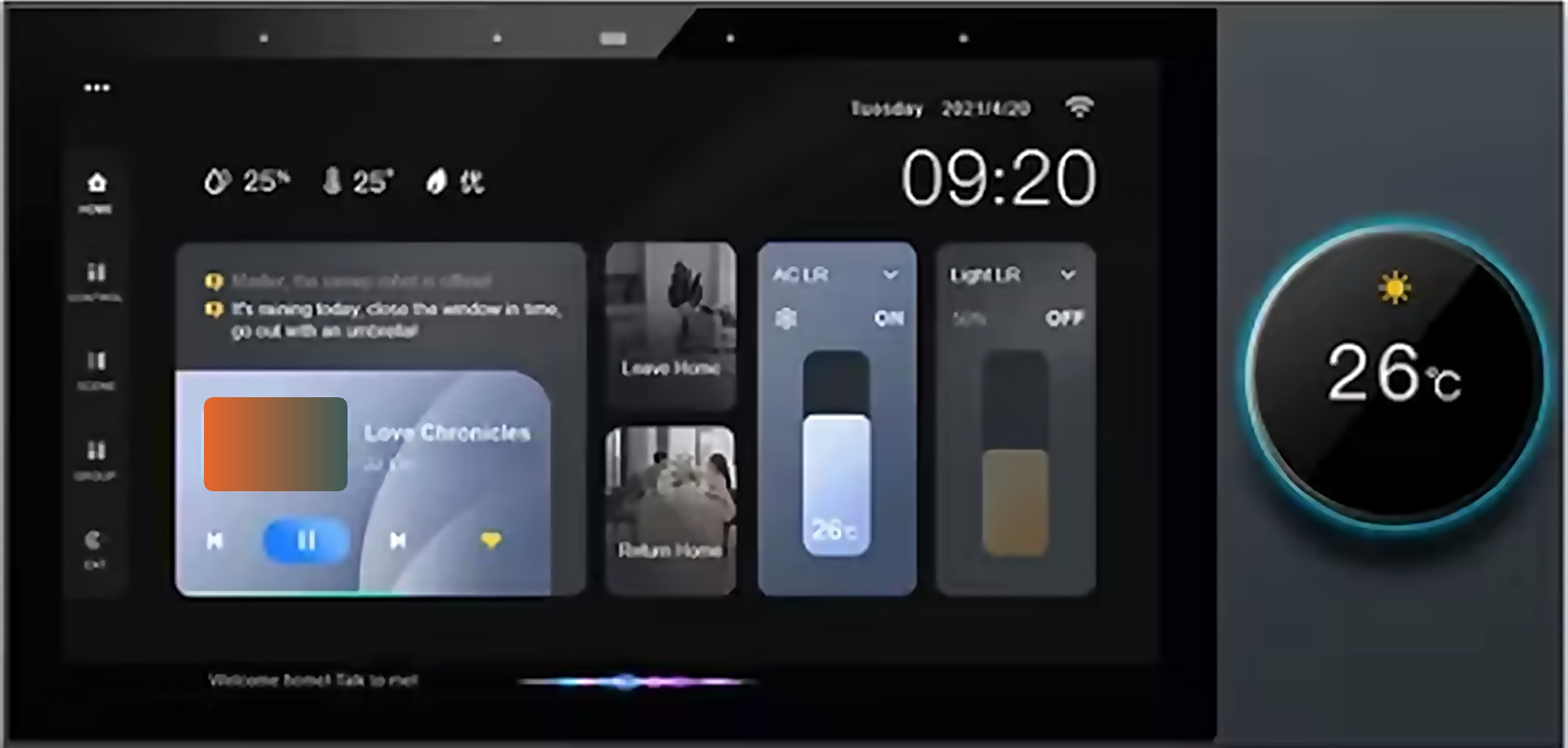
Spark control panels: the same devices on your wall
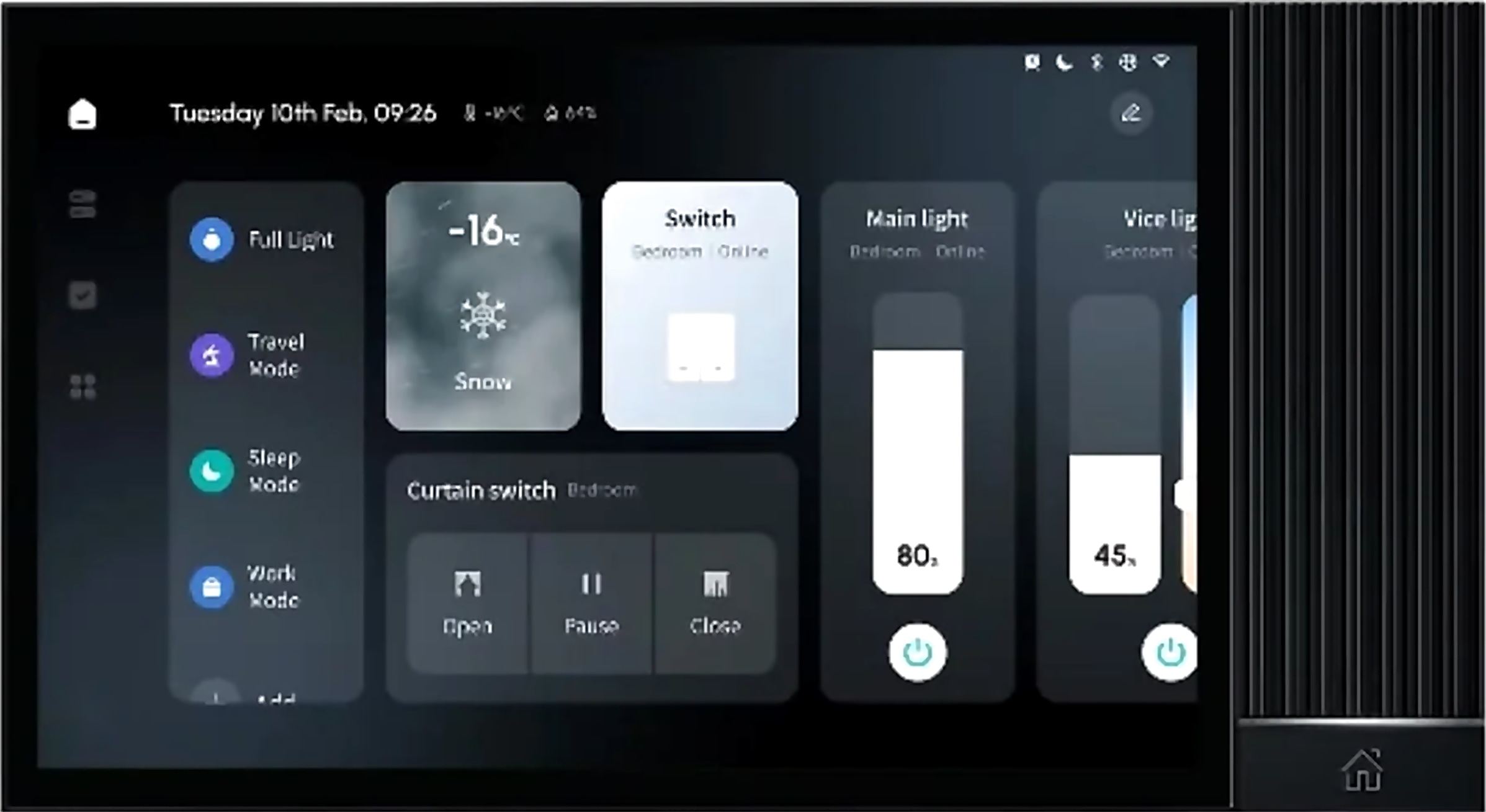
A Spark control panel puts your Tuya Smart home on the wall. Every panel has a built-in Tuya Zigbee gateway and 2.4 GHz Wi-Fi: you set up devices and scenes in the app, and control the same ones from the screen.
On the 6-inch Panel, the Android touch screen brings lights, curtains, smart switches, door locks and scenes together, with Home mode, Leave mode or a movie scene one tap away. Four physical keys sit below it, and a 3-way 10 A relay takes up to three lighting circuits.
It has a built-in speaker and microphone, connects two ceiling speakers and measures 161.5 × 86 × 38.2 mm. Anyone can use it without a phone, guests and children included. Spark control panels run from 4 to 10 inches.
Tuya scenes, automations and notifications
A scene is a set of actions you start yourself, from the app or a panel. An automation starts on its own, at a set time or when a device reports a change. You build both in Tuya Smart.
The Hub-Z brochure gives examples: heating on from a temperature sensor, hall lights when a door opens, curtains opening on a schedule. These local scenes between Zigbee devices keep running when the internet is down. The IR-10 can also command the AC from a compatible door, temperature or motion sensor.
For ideas to copy, from leaving home to good night, see our smart home scene and automation ideas.
Notifications from Spark devices
- Door calls. When the S-301 outdoor station rings, your phone rings too: answer, watch the live camera and unlock.
- Locks. Camera models take video calls on your phone. The wooden, aluminium and glass door locks keep unlock records and alert you when their AA batteries run low.
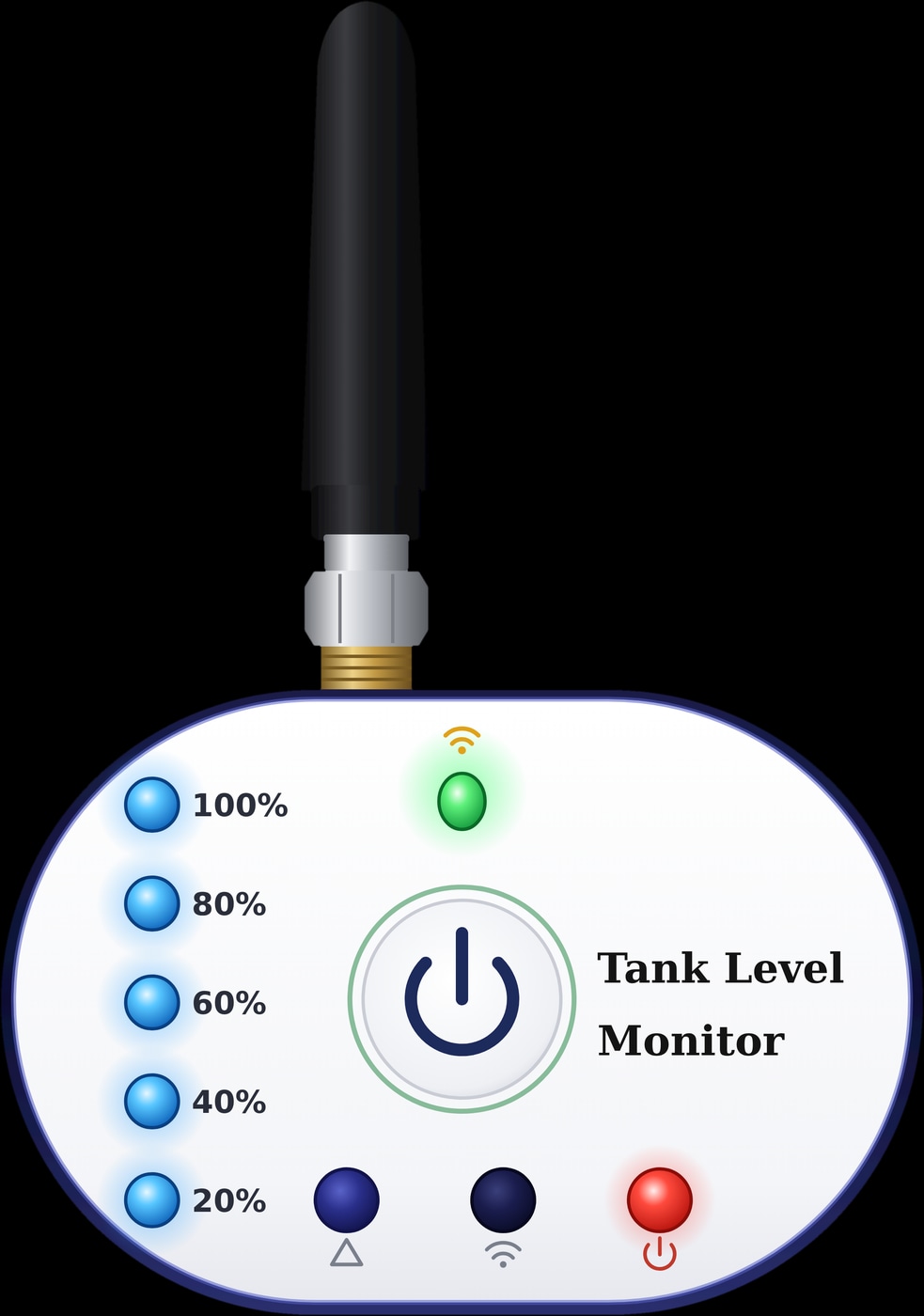
- Tank levels. The WL-30 has high and low level alarms, and a Tuya Smart scene can notify you when the level status changes.
Alerts reach your phone wherever it has internet; for families abroad, see our guide to managing your Jordan home from abroad. Voice control with Alexa or Google Home, stated on several Spark pages, also needs the internet.
How to share your Tuya smart home with family
Invite family members to the home instead of passing round one phone or one password. Each person then uses the app on their own phone and account.
Spark devices build on this: the WL-30 shares tank access with the family, Spark curtain modules share curtain control, and the wooden, aluminium and glass door locks manage fingerprints, passwords and cards, and open for a visitor from the app.
- Parents and adult children: the whole home, to manage devices, scenes and access.
- Children and older parents: often the wall switches, a panel and a fingerprint at the front door.
- Helpers and drivers: one shared device, or a door you open for them from the app.
Installers who set up and hand over homes like this can become a Spark partner.
Questions people ask about the Tuya Smart app
Is Tuya Smart the same as Smart Life?
They are two apps on the same Tuya platform. Spark's panels, locks and thermostat name Tuya Smart; the Hub-Z, IR-10, curtain motors, tank sensors and intercom kits name both. Use one app for the whole family.
What is a Tuya Zigbee gateway?
It is the device that brings Zigbee devices into the Tuya Smart app: in a Spark home, the Hub-Z or the gateway built into every Spark control panel. Wi-Fi devices, such as the smart locks, need no gateway.
How do I add a Zigbee device to the Tuya app?
Add the gateway first: for the Hub-Z, tap + in Tuya Smart and follow the prompts. Then open the gateway in the app and pair the device. With a panel, pair it with the panel's built-in gateway.
How do I share my Tuya smart home with my family?
Invite each family member to the home, so they use the app on their own phone and account. Keep the management of the home with one or two adults, and share single devices with helpers.
Does the Tuya Smart app work without internet?
Your wall switches work either way, and local scenes between Zigbee devices on the Hub-Z keep running offline. Remote control and voice assistants wait for the internet; see our guide to a smart home without internet.